Ads 468x60px

Showing posts with label iPhone. Show all posts

4.14.2011

White iPhone 4 Confirmed by Apple!

It looks like the white iPhone that is always delayed for reasons never explained by Apple will be coming out this Spring.

Ten months after the release of the iPhone 4, Apple has confirmed the release with The Wall Street Journal that is, without a doubt, coming this Spring. Apple never specified a release date or what carrier(s) the phone will be available on.

When the iPhone 4 first unvieled, Steve Jobs held in his hand a white iPhone 4. But when pre-orders started for the device, only the black model was available for order. At that time, Apple released a statement saying that the white iPhone was "more challenging to manufacture than expected" and they would have to delay the release for that version. This hasn't been the first time this has happened though. All iPhone owners know of the continuous delays for this model with every unviel of the iPhone.

At this point, with all the rumors of the delay of the iPhone 5, many are convinced that Apple is doing this to distract attention from the delay of the 5th generation iPhone. Especially since they WWDC seems to be more of a software release than a product release, this is looking more likely to be a distraction.

4.12.2011

iPhone 5 Not Released Until Early 2012?

Everybody is used to the "norm" when it comes to Apple's releases of products. One of the most known release is the iPhone at the WWDC, which will happen June 6-10 this year, is the next-generation iPhone. Each year since the first iPhone came out, an announcement has been released at WWDC for the newest iPhone release. This year, there are more rumors than usual expecting the iPhone release to be delayed this year or maybe even into the beginning months of next year. Analysts Avian Securities are making a pretty big claim that the iPhone 5 won't be into production until September. With production not starting until September, this would probably lead into a late-2011 or early-2012 release.

This claim was brought up by a conversation that Avian Securities had with a "key component supplier". The conversation is below, in full:
Supporting out comments over the last month, conversations with yet another key component supplier indicates that production for iPhone-5 will begin in September. This is consistent with Avian findings in the supply chain in recent months and we believe the consensus view is moving towards this scenario. In addition, our conversations also indicate the existence of a lower-spec/lower-priced iPhone in Apple's roadmap.
However, while our contacts have seen the placeholder in the Apple roadmap, they do not yet have insight into specs or production timing. This leads us to believe that any launch is likely a very late 2011 or more likely a 2012 event.
As a reminder, Avian has uncovered several data-points in recent months pointing to the existence of a lower-spec/lower-price iPhone. A lower-spec/lower-price iPhone has also been speculated in the press and gadget blogs, though we do not believe consensus currently discounts the existence of such a model.
While nobody has anybody clear evidence as to why the above conversation isn't true, there is no evidence showing that this information is false. Even though Apple has had consistent summer releases of the iPhone at WWDC, when you add up all of the rumors and and current events that can harm production of certain aspects of the phone (such as the Japan earthquakes), an end of the year release seems more and more likely. I guess one positive thing mentioned in the above conversation is the lower-spec/lower-priced iPhone possibility. It will be interesting to see what Apple does to make the iPhone more affordable.

4.03.2011

New iPhone User Tips

Talk to anybody that you know that has an iPhone and they will surely say that it's a phone like no other. But when you're converting to the iPhone from any ordinary phone can be a long, hard adjustment if you don't have experience using an iPhone or iPod touch. If you're a new to the iPhone community, here are some tips that will help you get started with your new phone.
Courtesy of: Apple.com
  • Multitasking
    • Using multi-tasking on the your iPhone is a very simple task, but can be very hard to come by if you don't already know how to use it. This feature is used, simply, to navigate between recently opened apps quickly without having to go through your home screen. To use multi-tasking, simply double-tap the "Home" button at any time. You will know that you tapped it fast enough when you see the screen slide up and a row of four recently opened apps. Although you can only see four apps at a time, just like the home screen, you can scroll back and fourth to see more recent apps. If you scroll to the left, you can even use some of your iPod controls; such as: play/pause, forward, backward, and even volume.
  • Text tips
    • Texting on the iPhone, when you are not used to it, can be a major hindrance. Here are a couple quick tips to help you to learn how to text on your new phone. 
      • Periods. There are a few different ways to add a period to your text. You can do the old fashioned way of going to the symbols screen and hit the "." button; or you can do the quick, easier way of double-tapping the spacebar. By double-tapping the spacebar, a period will be automatically inserted.
      • Predicted Text. No matter where you type on your iPhone, you will always be given some predicted words that the iPhone predicts for you. Sometimes this can be more of a bother than anything but is really useful when typing longer words or words that you're not too sure how to spell. Simply just tap the spacebar or the word that you want to enter. If you don't want to add the word, either keep typing your word or tap the "x" next to the predicted word.
  • Folders
    • Whoever it was that thought of adding folding to the home screen was a genius (in my opinion)! Apple has created the home screen so that you can group apps together by category, or in any way you want. By putting your apps together in folders helps you to keep your home screen organized and minimizes the number of screens you need. To organize your apps into folders, tap and hold on any app, for approximately three seconds, then drag one app on top of the app you want to create a folder with. When you first create a folder, your phone will automatically name the folder based on what apps you've grouped together. You are able to add up to nine applications into one folder. 
  • Battery Percentage
    • It's always a nice thing to know how much battery life you have left on your device. It comes standard on the the iPhone to show a battery symbol on the top right corner of the screen, but it can be hard to know the exact battery left. If you navigate through the settings (Settings>General>Usage>Battery Percentage), you can turn on the option to show the exact battery percentage directly next to the standard battery indicator.
  • Notifications
    • A lot of the apps that you will download, will come with notifications that are automatically turned on when it is downloaded. For some apps, such as your social networking apps, you will want to keep those notifications turned on. For other apps, such as games, you may want to turn off the notifications so you're not constantly getting updates to your phone. You can modify these changes easily by by going into your settings (Settings>Notifications), and changing what you want to change. Each app comes with three different ways to notify you: Sounds, Alerts, and Badges. Each has their own option so you can keep one on while turning the other off.
So those are some quick tips that I would give to some new iPhone owners. There are many different tips and tricks that will help you do what you need more efficiently. So talk to your friends and family that you know to help you with your needs. If you need help with any specific problem that you can't get the answer to, feel free to email you and I'll do the best I can to help you!

3.31.2011

iPhone Notifications

Notifications on your iPhone can be a great thing, but can also lead to some very annoying sounds and unwanted updates. Most apps in the App Store now come with a notifications feature that automatically is turned on.

To turn off notifications for an app or two, simply got to you Settings >Notifications and then select the apps that you want to turn notifications off for. If you don't want to turn off all notifications for an app, you don't have to! You do have the option to turn off some of the different ways to notify you, while keeping others on. There are three different options for this: badges, alerts, and sounds.

Badges:
Badges are what you see on your home screen on the top right corner of an app when there is a notification for that specific app. I like to keep this option turned on mainly for my apps that I use but aren't important enough to have be alerted by a sound or something that'll pop up on screen.

Alerts:
Alerts are like what happens when you recieve a text, just without the sound. An alert will show up on your screen whether you phone is locked or you are in the middle of doing things. I use the 'Alert' option mainly for my social networking apps that I tend to use more.

Sounds:
This option is exactly what you think it is: sounds. Leaving this option on will alert you with a quick sound (or vibrate, depending on your ringtone volume) to let you know that you have a notification awaiting. Again, I mainly use this option for my social networking apps that I tend to use a lot more. I don't feel like this option is necessary for apps that I rarely use.

3.29.2011

Quick iPhone Tips and Tricks

Everybody that has an iPhone knows that it has some amazing features that come along with it! But some people may not know all of the tips and tricks that make everyday use of their iPhone even easier than it already is. Check out these tips and tricks that I find most useful on a daily basis:
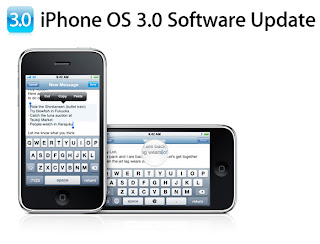


Photo Courtesy of Apple.com

1. Cut, Copy, and Paste
The cut, copy, and paste feature came to the iPhone in the iOS 3.0 software update. Most (if not all) apps actually support this feature between different apps. To use this easy feature, simply touch and hold any text until the "Select" and "Select All" buttons appears. After those two buttons appear, you can lift your finger off of the screen and select which button you would like. If you use the "Select" button, you can edit how much text is selected by using the blue brackets on each side of the selected word. After you have your text selected, simply go to where you need to post your text, hold down where you need it, and select the paste button. You can cut, copy, and paste almost any thing you may want: from text to even photos!

2. Screen Shots
Ever see an iPhone screenshot of an app or anything and wonder how they did that? It's surprisingly easy, but almost impossible to find out on your own. With the screen shot function, you can take pictures of exactly what your screen shows and automatically saves to your photos. To use this feature, simply navigate to that spot that you want to take a screen shot of. Once at the desired point, simply press both the HOME and SLEEP buttons at the same time. You will see a flash of white on your screen to show you that the screen shot has been taken. After you take the shot, if you go into your photos, it will be the last photo in your camera roll. From there you can share it however you want.


Photo Courtesy of Apple.com

3. Jump to top.
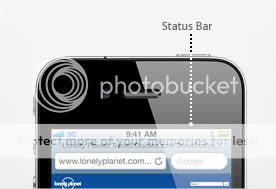
I use this trick A LOT when I'm surfing on the web or even in my Facebook app. Have you ever scrolled so far down a page or in an app that it takes you forever just to get back to the top? To make a quick jump back to the top of the page, simply just tap your status bar (the bar running across the top of the screen) and the page that you are on will automatically jump back to the very top of the page.
4. Text Character Count
If you text iPhone to iPhone, character doesn't really matter; it'll deliver the message all at one almost no matter how long it is. If your friends don't have an iPhone, it may be a good idea to watch the character count so you don't end up sending them multiple messages. To turn on the character count, simply go to Settings > Messages > Character Count. Once you tap the character count on, you will now see how many characters you have used in your text.


Photo Courtesy of Apple.com
5. Batterly Percentage Indicator
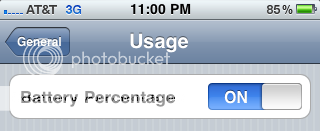
It's nice to know how much battery life you have on your phone, especially when you're out and about. The 20% warning that Apple has worked in is a nice feature that was added in but sometimes isn't enough. Since the iPhone 3Gs update, you are now able to see the percentage of battery life you have on your phone. To turn the indicator on, go to Settings > General > Usage > Battery Percentage. Once you tap the Battery Indicator switch, you will start to see the batter percentage at the top of your status bar right next to the normal battery indicator.

Well I hope these tips and tricks helped you out if you didn't already know about them. More tips and tricks will be coming soon! And if you need help with something, leave a comment about it below and I'll do my best to help you out!


3.28.2011

WWDC 2011 Dates Announced!

If you were hoping to be at the Wolrdwide Developers' Conference this year, hopefully you acted fast when Apple announced the dates and opened up sales for tickets! The ticket prices this year were $1,599 each and, even at that price, sold out in less than 12 hours! For those of you that heard the news late, you're going to have to wait until 2012. While it isn't unusual for these conferences to be sold-out, it is a bit unusual for it to sell out in one day. The 2010 conference took eight days for the conference to sell out, while the year before in 2009 took the whole month to sell out. For those people that were lucky enough to get their ticket right away, the event will be taking place June 6 through June 10. During those days, there will be over one-hundred technical sessions for both iOS and Mac OS.

Courtesy of: Apple.com
In a press-release early Monday morning, Apple Senior VP, Phil Schiller, announced that this conference will have a 'double-focus' on iOS and Mac OS and will 'unviel the future' of the two. This year's event is expected to be much more spectacular than previous years as they have never focused both on Apple's mobile products and Mac OS.

Jesus Diaz, a blogger with tech enthusiast site Gizmodo, thinks that Schiller's statement says it all as he writes: "Obviously, the future of iOS and Mac OS X are iOS 5 and Lion." While I can't see the complete justification for Lion, I can completely see why he thinks they will unviel iOS 5. It seems to be a yearly tradition for Apple to introduce it's new iOS device at the WWDC, the spring before the release. (See models and release dates here.) Partly for developers to be able to use the new iOS to be able to support it when it is officially released, and partly, I think, so the consumers (you and I) will build up anticipation and won't want to wait weeks after it's released to go out and buy it.

But what if Apple breaks the traditions of it's past? Only time can tell, as one analyst, Michael Gartenberg says:
You get caught up in the patterns, and it holds true, until it doesn't. There is no reason for Apple to follow a predictable yearly pattern, and it keeps their competition off gaurd a little bit.
So we'll see what happens. I personally don't think it will come any later than the WWDC. I don't think that Apple would want to upset all of their consumers of one of their biggest products!

But what's your opinion? Sound off in the comments below!

3.09.2011

64GB iPhone Prototype or is it Fake?

An iPhone recently surfaced the streets out in Hong Kong, probably a week or two ago. Looking from the pictures of the iPhone 'prototype', it does seem like it could be a possible prototype for Apple as they have used an 'X' on their prototypes as seen on their iPhone 4 prototype that surfaced some time before it was announced. The newly surfaced prototype does look exactly like the iPhone 4, so this new discovery can mean a couple of things:


1. This could be a real prototype.
Apple may have actually tried make the iPhone 4 available in 64GB but for some reason ditched it. It may have been simply that it would have cost too much and the price they would have to sell the device for would be unrealistic. If this is the case, then it is very plausible that we might see a 64GB iPhone 5. Whatever they do, I hope the memory goes up because I know my 32GB iPhone is maxed out easily.


2. The image was photoshopped.
If this photo was photoshopped, it was done by a professional! It would have taken somebody that has a lot of experience using photoshop to carefully edit this so that they didn't square off any of the light reflections on the back of the phone. And to space out the words above and below the 'XXGB' addition would have been a challenge as the current iPhone 4's don't show the capacity on the back of the phone like previous generations. Lastly, when looking in the settings to see the 'About' section of the phone, you can see that it clearly states it has 59.1GB of storage left on the phone. When comparing to the previous phones, this does seem about right as you would have to compensate for the extras that have been put into the phone just to add all of that memory.

These photos really seem more real than fake if you ask me. It seems to me as though Apple has tried to make a 64GB version of the iPhone 4 but then left it for another generation of the phone for whatever reason. It could have been something even just that they didn't want to emplament it on this generation. Either way, I really do hope and pray that Apple does come out with an iPhone with a higher capacity. 32GB just isn't doing it for me anymore!

But of course we're going to have to wait and see until the next WWDC to see what Apple has come out with! But what do you all think, is it real or fake? Leave your thoughts in the comments below!