Ads 468x60px

Showing posts with label Electronics. Show all posts

1.11.2013

Impressive Prototypes - CES 2013


As booths are taken apart and lights are taken down, the International Consumer Electronics Show (CES) is officially over for 2013. People from all over the world gathered from January 8th - 11th for the event that took place in Las Vegas.

To start off, let's start gaming.

If you're really into gaming, computer gaming specifically, you may have heard of the company, Valve. Valve, who is popular for the 'Steam' community, had a lot of buzz going around at this year's conference. It was announced, that could be a big threat to Nintendo, that the company will be releasing a new game box shortly, that will bring PC gaming straight to the TV, without the need of connecting to a computer. The prototype doesn't feature everything like the Xbox and Playstation do, (like multimedia and Video-on-Demand services) but still poses a threat to Nintendo, as they just launched their social features only in December. Valve is working with Xi3 Industries to produce their console.

Nvidia's 'Project Shield' (Jered Newman / Time.com)
While Valve takes all the buzz for a new gaming console, Nvidia (best known for PC graphics processors and more recently, mobile chips) took center stage with their new handheld console, Project Shield. (Watch demo of the device) The device is a bit larger than the size of an Xbox gamepad, which features Nvidia’s Tegra 4 processor inside. A 5-inch, 720p touch-screen folds out from the controller, much like an older Nintendo Gameboy would.

Featuring an Android operating system, the handheld console has many different features. One feature that seemed to grab the attention of attendees of CES, was the device playing PC games over a home network. (With the requirement that the PC has a newer Nvidia graphics card.) Attendees were pleased to notice that lag was insignificant while playing games like Call of Duty: Black Ops II. The device can also play Android games.

Leaving games behind, let's talk about something that didn't catch quite as much buzz, but is still intriguing to hear about.

Courtesy of The New York Times 
This device is called ivee. Ivee is an alarm clock, but with a twist -- this clock has voice-recognition software. You say "Hello ivee," and the device responds with a "Hello." Then, you simply tell it what time to wake you up.

Not impressed yet?

Well, ivee can also connect to wi-fi connections. Connect ivee to your home network and it can serve as a voice-control central for any wi-fi capable device that may or may not already have voice-recognition software. Demonstrations included using ivee to change the temperature on a thermostat. Or using it to tell a Roomba vacuum to clean up in an area. Or use it in conjunction with a Belkin smart plug to turn on and off a lamp. The wi-fi also allows ivee to get simple information from the web, as well, such as the weather forecast for a nearby city.

As ivee is just in the beginning stages of being produced, not many companies have provided ivee with their application programming interfaces, or APIs, which still makes things a little hard. For things to really take off, the companies founder, Jonathon Nostrant, is hoping to work out some more business connections.

So as CES 2013 has closed it's doors, everybody here at VegasKidReviews has been impressed with the many impressive prototypes that may never be made for the public market. After seeing all of these new gadgets, I know that I can't wait to see what's going to be revealed at CES 2014!

4.16.2011

Are 2 Touch Screens Better Than One?

This Sunday, April 17th, a new kind of touch-screen phone will be available for purchase through Sprint. This touch-screen phone is out of the ordinary. Not only does it have a touch-screen, it features a second touch-screen that can be used side-by-side.


The Kyocera Echo looks like a normal Android phone at first glance, although a little thicker than usual. First thoughts is that it has some kind of fancy slide-out keyboard -- but no, it doesn't! Under the first touch-screen, is another touch-screen. A special hinge design allows the top touch-screen to slide up and be positioned directly next to the lower screen for side-by-side use. Use of the two screens can be very useful and productive side-by-side. You are able to use one app on both screens, or even split the screens and have two different apps open at once for use. Turn the Echo sideways, and you are able to view the Web on a combined total of a 4.7 inch screen.

At a 6.8 ounce phone, the Kyocera Echo is noticably heavier than the other competing phones; such as the iPhone 4 at 4.8-ounces, the Blackberry Bold 9700 at 4.3-ounces, etc. From sources able to have a preview of the phone, when in a phone call, the 0.68-inch thick phone seemed bulky; although, the calls sounded fine.

At this point, users are worried about battery life with the two seperate touch-screens. Sprint estimates the total talk time to be up to 7 hours. The phone does come with a spare battery that can be swapped with the original, or even act as a power source with the right accessories.

The $200 phone (with 2-year contract) must be used with one of Sprint's Everything Data plans that start at $70 a month, plus a $10 premium data charge each month. Like other smart phones, the Echo is hot-spot enabled to host up to 5 devices for an extra $30 each month.

[original article found on The Wall Street Journal]

4.13.2011

Apple in the Process of an HDTV?

There has been some past talk about Apple going into the HDTV business, but nothing has made it evident that it's a possibility, until now. Brian White, an analyst with Ticonderoga Securities, was recently at a China electronics trade show. He mentioned in a not to investors that he was able to get "data points" that show the production of a "Smart TV" release by Apple, as soon as the end of the year. Here is a quote by White:
"Our research suggests this Smart TV would go well beyond the miniature $99 second-generation Apple TV that the company released last fall and provide a full-blown TV product for consumers"
He continued on to say that Apple has been suspected to enter the HDTV market by company watchers, the Mac maker now appears to be "movind down this path at a faster pace than the market expected."
"The combination of Apple's powerful ecosystem, industrial design savvy, powerful brand and ability to reinvent product categories could make Apple a powerful force in the TV world over the next few years"
Courtesy of MacTrast
One analyst of Piper Jaffray, Gene Munster, seems to continually insist that an Internet-connected HDTV from Apple is expected. He has repeatedly forecast that Apple will introduce such a product in the years to come, with a price around the $2,000 range.

A product as expected form Munster, could have a lot of possibilities, such as a subscription service to iTunes which could allow users access to content at a flat-rate price. This possibily could very well negate the need for any kind of cable box or DVR. Although, White's public not gave no indication of any of the possibilities to come along with the TV, Apple has had a great amount of experience with HD displays on it's iMac desktop, which includes their first release of their 27-inch iMac in 2009.

Earlier in this year, Apple announced that they have invested $3.9 billion of their cash reserves to secure key components for their multiple products. At the announcing of this, many assumed the money would have gone toward securing displays for their products, including the iPhone and iPad. But Munster believes that the multi-billion investment is just more evidence of an Apple HDTV release. As he said in February, he believes that Apple would be able to build a TV up to 50 inches, though he predicted that a product of such size wouldn't launch until the early calendar year of 2012, at the earliest.

4.10.2011

Skullcandy Full Metal Jacket Earphones

So you bought a new iPhone, and you've got the standard iPhone earphones that comes with it. I don't know about you, but I wasn't really impressed with Apple's headphones. To me, the sound quality wasn't that great, and it started to hurt my ears after listening to music for a while. I wanted to get the most out of my music but these standard earphones weren't really working for me. After looking around for a while, I found these:
Courtesy of Skullcandy.com
Skullcandy's Full Metal Jacket Earbuds. Buying them from Skullcandy would have absolutely broke my bank, but luckily, I found a website called Whiskey Militia (which will have a review shortly!) where I was able to buy my earphones for only $25 plus shipping! These earphones are everything that I wanted my earphones to be! They provided rich sounds while being able to hear every part of the music. They were definitely more comfortable than Apple's cheap earphones, and even has a mic so that I can use it while on a call on my iPhone.
The quality of these earphones are so much more than Apple's. The sound that I got from these the first time I plugged them in was absolutely amazing! I was able to hear every part of the music clearly, with a deep, rich bass and clear vocals. Even when turning the volume up on these, the quality stays the same and seems like it would almost be impossible to ruin these by turning the music up too loud. Unlike any other earphones I've had, these are actually pretty comfortable! I could listen to music for hours without taking these out because of discomfort. They come with different sized earbuds to fit the size of your ear better. And another perk, these are even noise-canceling without having to destroy your eardrums with the loudness of your music.

Now that I've told you how amazing these are, lets get down to the only two things that I've found to be a down-side with these earphones.
  • Number One: after a bit of use, the mic seems to lose quality, and eventually, the mic on my pair of earphones stopped working all-together. Although the mic didn't work, I was still able to use the button on the earphones to control my iPod (pause, next, previous, ect.).
  • Number Two: if anything taps the wires, you can hear it no matter how loud your music is. For example, I tend to use my headphones when doing dishes, and when the wire taps against the counter, it's easy to tell that it just happened. Even just moving your fingers along the wire will create a sound that is impossible to hear and quite annoying when you're listening to music.
Like I said, those are the only two things that I've been able to find that I would consider a negative. I think that this product is definitely worth the money as it will last ages! I've already had mine over two years and they still work fine! When I still used Apple headphones, I was usually replacing them, about, every six months it seems like! But if you don't believe me, go look at some other reviews! If you have an experience with these, why don't you leave a comment and tell everybody how you feel about them?

4.03.2011

New iPhone User Tips

Talk to anybody that you know that has an iPhone and they will surely say that it's a phone like no other. But when you're converting to the iPhone from any ordinary phone can be a long, hard adjustment if you don't have experience using an iPhone or iPod touch. If you're a new to the iPhone community, here are some tips that will help you get started with your new phone.
Courtesy of: Apple.com
  • Multitasking
    • Using multi-tasking on the your iPhone is a very simple task, but can be very hard to come by if you don't already know how to use it. This feature is used, simply, to navigate between recently opened apps quickly without having to go through your home screen. To use multi-tasking, simply double-tap the "Home" button at any time. You will know that you tapped it fast enough when you see the screen slide up and a row of four recently opened apps. Although you can only see four apps at a time, just like the home screen, you can scroll back and fourth to see more recent apps. If you scroll to the left, you can even use some of your iPod controls; such as: play/pause, forward, backward, and even volume.
  • Text tips
    • Texting on the iPhone, when you are not used to it, can be a major hindrance. Here are a couple quick tips to help you to learn how to text on your new phone. 
      • Periods. There are a few different ways to add a period to your text. You can do the old fashioned way of going to the symbols screen and hit the "." button; or you can do the quick, easier way of double-tapping the spacebar. By double-tapping the spacebar, a period will be automatically inserted.
      • Predicted Text. No matter where you type on your iPhone, you will always be given some predicted words that the iPhone predicts for you. Sometimes this can be more of a bother than anything but is really useful when typing longer words or words that you're not too sure how to spell. Simply just tap the spacebar or the word that you want to enter. If you don't want to add the word, either keep typing your word or tap the "x" next to the predicted word.
  • Folders
    • Whoever it was that thought of adding folding to the home screen was a genius (in my opinion)! Apple has created the home screen so that you can group apps together by category, or in any way you want. By putting your apps together in folders helps you to keep your home screen organized and minimizes the number of screens you need. To organize your apps into folders, tap and hold on any app, for approximately three seconds, then drag one app on top of the app you want to create a folder with. When you first create a folder, your phone will automatically name the folder based on what apps you've grouped together. You are able to add up to nine applications into one folder. 
  • Battery Percentage
    • It's always a nice thing to know how much battery life you have left on your device. It comes standard on the the iPhone to show a battery symbol on the top right corner of the screen, but it can be hard to know the exact battery left. If you navigate through the settings (Settings>General>Usage>Battery Percentage), you can turn on the option to show the exact battery percentage directly next to the standard battery indicator.
  • Notifications
    • A lot of the apps that you will download, will come with notifications that are automatically turned on when it is downloaded. For some apps, such as your social networking apps, you will want to keep those notifications turned on. For other apps, such as games, you may want to turn off the notifications so you're not constantly getting updates to your phone. You can modify these changes easily by by going into your settings (Settings>Notifications), and changing what you want to change. Each app comes with three different ways to notify you: Sounds, Alerts, and Badges. Each has their own option so you can keep one on while turning the other off.
So those are some quick tips that I would give to some new iPhone owners. There are many different tips and tricks that will help you do what you need more efficiently. So talk to your friends and family that you know to help you with your needs. If you need help with any specific problem that you can't get the answer to, feel free to email you and I'll do the best I can to help you!

3.31.2011

iPhone Notifications

Notifications on your iPhone can be a great thing, but can also lead to some very annoying sounds and unwanted updates. Most apps in the App Store now come with a notifications feature that automatically is turned on.

To turn off notifications for an app or two, simply got to you Settings >Notifications and then select the apps that you want to turn notifications off for. If you don't want to turn off all notifications for an app, you don't have to! You do have the option to turn off some of the different ways to notify you, while keeping others on. There are three different options for this: badges, alerts, and sounds.

Badges:
Badges are what you see on your home screen on the top right corner of an app when there is a notification for that specific app. I like to keep this option turned on mainly for my apps that I use but aren't important enough to have be alerted by a sound or something that'll pop up on screen.

Alerts:
Alerts are like what happens when you recieve a text, just without the sound. An alert will show up on your screen whether you phone is locked or you are in the middle of doing things. I use the 'Alert' option mainly for my social networking apps that I tend to use more.

Sounds:
This option is exactly what you think it is: sounds. Leaving this option on will alert you with a quick sound (or vibrate, depending on your ringtone volume) to let you know that you have a notification awaiting. Again, I mainly use this option for my social networking apps that I tend to use a lot more. I don't feel like this option is necessary for apps that I rarely use.

3.29.2011

Quick iPhone Tips and Tricks

Everybody that has an iPhone knows that it has some amazing features that come along with it! But some people may not know all of the tips and tricks that make everyday use of their iPhone even easier than it already is. Check out these tips and tricks that I find most useful on a daily basis:


Photo Courtesy of Apple.com

1. Cut, Copy, and Paste
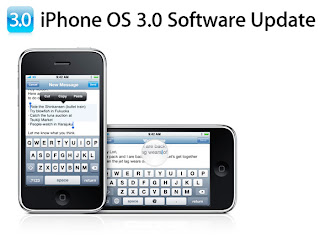
The cut, copy, and paste feature came to the iPhone in the iOS 3.0 software update. Most (if not all) apps actually support this feature between different apps. To use this easy feature, simply touch and hold any text until the "Select" and "Select All" buttons appears. After those two buttons appear, you can lift your finger off of the screen and select which button you would like. If you use the "Select" button, you can edit how much text is selected by using the blue brackets on each side of the selected word. After you have your text selected, simply go to where you need to post your text, hold down where you need it, and select the paste button. You can cut, copy, and paste almost any thing you may want: from text to even photos!

2. Screen Shots
Ever see an iPhone screenshot of an app or anything and wonder how they did that? It's surprisingly easy, but almost impossible to find out on your own. With the screen shot function, you can take pictures of exactly what your screen shows and automatically saves to your photos. To use this feature, simply navigate to that spot that you want to take a screen shot of. Once at the desired point, simply press both the HOME and SLEEP buttons at the same time. You will see a flash of white on your screen to show you that the screen shot has been taken. After you take the shot, if you go into your photos, it will be the last photo in your camera roll. From there you can share it however you want.


Photo Courtesy of Apple.com

3. Jump to top.
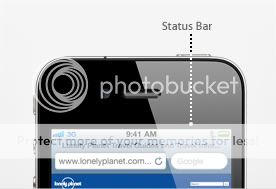
I use this trick A LOT when I'm surfing on the web or even in my Facebook app. Have you ever scrolled so far down a page or in an app that it takes you forever just to get back to the top? To make a quick jump back to the top of the page, simply just tap your status bar (the bar running across the top of the screen) and the page that you are on will automatically jump back to the very top of the page.
4. Text Character Count
If you text iPhone to iPhone, character doesn't really matter; it'll deliver the message all at one almost no matter how long it is. If your friends don't have an iPhone, it may be a good idea to watch the character count so you don't end up sending them multiple messages. To turn on the character count, simply go to Settings > Messages > Character Count. Once you tap the character count on, you will now see how many characters you have used in your text.


Photo Courtesy of Apple.com
5. Batterly Percentage Indicator
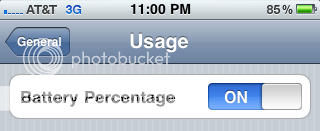
It's nice to know how much battery life you have on your phone, especially when you're out and about. The 20% warning that Apple has worked in is a nice feature that was added in but sometimes isn't enough. Since the iPhone 3Gs update, you are now able to see the percentage of battery life you have on your phone. To turn the indicator on, go to Settings > General > Usage > Battery Percentage. Once you tap the Battery Indicator switch, you will start to see the batter percentage at the top of your status bar right next to the normal battery indicator.

Well I hope these tips and tricks helped you out if you didn't already know about them. More tips and tricks will be coming soon! And if you need help with something, leave a comment about it below and I'll do my best to help you out!


3.07.2011

The Sony Dash: Pros and Cons


Not too long ago, I was looking for a present to get my mom. I knew I wanted to get her some kind of tablet other than the iPad because that was just too expensive for me. So somehow, I came across this product: The Sony Dash. It seemed really cool and it was really cheap, compared to the Apple iPad, coming in at just around $200. It wasn't until I read more into it that I didn't really like and opted for something else.

PROS:
  1. Completely customizable.
  2. The Sony Dash comes with many different apps that you can download to add to your Sony Dash. Unlike the iPad, you are able to have a stream (such as Facebook or Twitter) on the home screen that updates it automatically. There's no need to have to wait to update just when you open the app; the Sony Dash updates itself in real-time.
  3. Apps are completely free!
  4. When I came across this piece of information in the FAQ, I was amazed that they offered all of their apps for free! If you tried to get all of the top apps on an iPad, you can easily find yourself up $5 for each app!

  • All for around $199.
  • This product only costs a mere $200! That amount of money at the Apple store won't get you anything except for accessories to their products.


    CONS:
    1. Listen to internet radio... what about my own?
    2. Sony provides an internet radio app so that you can listen to your favorite radio station. They even say you can reach your photos and videos... online. The Dash does not actually store any kind of information. It has no storage at all. The only way to get to your own music, photos, or videos is if they are online.
    3. How portable is this "tablet"?
    4. If you go to the Sony Dash website and look through the pictures, you won't even see one that shows a power cord connected to the Dash. It wasn't until that I read on the FAQ pdf file that I realized it had to be connected to a power source the whole time it is on because it has no battery. This is directly from the FAQ page:
      8. Is DASH™ portable? DASH™ does not have a battery and requires an AC power cord (included).
      I don't know if it's just me, but I would have liked to know this on the original website instead of having to look through the FAQ page.
    5. Read some of the reviews of the product. Some of the customers have said things like, "Waste of money", "Not Worth It", "Returning it after 2 weeks." It seems to me that most people aren't a big fan of Sony's product that's supposed to compete with the iPad.

    If you have a Sony Dash yourself, leave a comment below and let me (and everybody else) what you think about it!

    iPad 2 Review


    With Apple’s recent announcement of the iPad 2 coming out on March 11th, many are waiting for the doors to open that day and be one of the first one’s to get their hands on the iPad 2. Until the launch, nobody will be able to know how it actually measures up to Apple’s description of it. On the Apple website, it seems to be an amazing product with it being 33% thinner, up to 15% lighter, a dual-core A5 chip, and front- and rear-facing cameras. But are these differences going to make the iPad 2 that much different than the first generation iPad? Here are some of the things that I found that I think you should know before purchasing one:
    1. iPad 2 is lighter and thinner.

      Apple called this the all-new design for the iPad. The main physical appearance is that it is 33% thinner than before coming in a 8.8 mm. (That’s thinner than the iPhone 4.) You’ll also notice that it is 15% lighter than the first generation.
    2. iPad 2 has FaceTime.

      It was expected that the iPad 2 would have the front-facing camera like the iPhone 4. (As well as the one on the back.) The rear-facing camera has the same resolution as the iPhone 4’s rear camera taking pictures in 720p. The only downside to the rear-facing camera is that it doesn’t have a flash like many other tablets contain.
    3. iPad 2’s battery life stays the same.

      Even after the add-ons that Apple packed into the new sleek design, they were able to keep the same 10 hour battery life, with the also stated month-long stand-by time from Apple. (But who’s not gonna touch their iPad for a month?!)
    4. iPad 2’s display stays the same as the first generation.

      While everybody was hoping for a larger-scale retina display, their hopes were put down with this iPad launch. The new iPad still has the same 9.7-inch display. It would definitely be expected for the third generation to have a better display.
    5. iPad 2’s graphics will be amazing!

      During the much awaited announcement, Steve Jobs said the graphics capability will be 9 times that of the first generation iPad. That promises the improvement of games on the iPad as well as the fact that is now has the same gyroscope the iPhone 4 and latest iPod touch has.
    6. iOS 4.3!

      The latest version of iOS ships with the iPad and will be available for iPhone 4, iPhone 3GS and iPod touch on 11 March. There’s faster Safari browsing performance; iTunes Home Sharing and thankfully an enhancement to AirPlay. Let’s hope it works now. (By the way, iPhone 4s can act as Wi-Fi hotspots too).
    7. HDMI out.

      Like the HTC Evolution, the iPad will also have an HDMI out. Plug it into any HDTV and not only will it mirror what you do on your iPad, it’ll charge it while you do it. This feature will be great for those of you that like to use your Apple products for presentations and the like.
    8. Shipments start on March 11th.

      You can order your iPad 2 on March 11th and it will be shipped to you from Apple for free! If you like to go into the stores to purchase your new product and not have to wait for it to arrive on your doorstep, Apple stores won’t start selling the device until 5pm on the 11th. But one advantage of getting it in-store, they offer free personal setup when you make your purchase.

    So those are just some things that I found that helped me to make my decision to purchase the product. I’m excited to wait in line to buy mine and start using it! So what do you guys think? Is it worth the money to buy it or wait until iPad 3?